Search

Showing posts with label Tips N Tricks. Show all posts

Download Windows 10 32Bit Or 64Bit ISO File Home Or Pro Edition Free Download

Windows OS is most widely used operating system for different devices. Windows OS is a Microsoft product. Windows OS update its version from time to time with its new amazing features. Its start its journey from Windows 95 and till update to its subsequent versions like 98, 2000, ME, Vista, XP, 7, 8, 8.1, and 10. Windows 10 is frequently launched and its become so much popular because of its new features. One reason of becoming popular of Windows 10 is that is freely provided by Microsoft corporation. Also there are many software compatibility issues with Windows 8.1. So Windows 10 is released with its new features which resolve all its software compatibility issues. Windows 10 also resolve the device driver compatibility issues. It do no need any device driver. It also provide basic inbuilt software like Winrar, PDF reader, Microsoft office document support. Windows 10 is also available for both 32 bit and 64 bit processor. Windows 10 also a provide a special feature called multiple desktop in which we can access multiple desktop, each with a different task. If you also want new awesome features of Windows 10 then this post is really for you. In this Article we are going to explain about the new features and step by step download procedure of Windows 10. 

Requirements for Windows 10                                                                                       


1 GB RAM.
1 Gigahertz Processor.
16 GB of Free Hard disk space.  
Graphics card: Microsoft DirectX 9 graphics device with WDDM driver.

Improvements In Windows 10


Improved Command Prompt.
Unified app store.
Multiple desktops.
Return of Start menus.
Advanced menu for settings.
More options for Task View.
Revised File Explorer and icons.
Single platform for smartphones, tablets, and PCs.
New browser, code-named Spartan.
Cortana personal assistant for desktops.


Comparison Between Windows 10 And Windows 8 


1. Edge Browser  Edge browser is one of the important feature of the Window 10 which is not available in Windows 8. Edge browser provide you the most optimize speed and feature. Its speed is more fast.
2. Start Menu changes Windows 10 also provide the changes in its design. Windows 10 embed Windows 8 tiles desktop into its start button which give it a more attractive look. 
3. Introducing personal assistant Windows 10 introduce a new feature called cortana. Cortana is a Windows 10 personal assistant which provide help about Windows 10. It also provide a way of entertainment. You just need to provide your Email and phone number.It is not available in Windows 8.
windows-10-cortana
4. Multiple Desktops Windows 10 also a provide a special feature called multiple desktop in which we can access multiple desktop, each with a different task.

Steps To Download Window 10 Or Upgrade From Older Version


1. First of all click on the download now button. Download tool now for 32 bit and 64 bit. Depend upon your processor click one of the button.


2. After clicking the button your tool will start downloading. You will see the Windows 10 setup wizard with two radio buttons. One is upgrade this PC now and second is Create media installation file for other PC.
windows-10-upgrade-pc
4. If you want to upgrade from lower version of Windows like Windows XP, 7, 8 then you have to select first radio button. If you want to download the file then you have to select second radio button. 5. After selecting the update this PC button Windows 10 start downloading and after downloading it will start installing into your PC.
6. If you have valid version of Windows 7 and 8 you do not need an Activation key. After installation it will automatically search for drivers
7. If you want to install on multiple PCs then you have to create an ISO image file or directly burn it into the USB.
8. After selecting the create media file button you will see the Windows 10 setup wizard. In this wizard you have to select Language, Edition and CPU architecture.
windows-10-select-edition
9. Then you have to click on the next button then you see the next wizard. In this wizard you have to select one of two options. One is USB flash drive and second is ISO image. Select the button according to your choice. Then click next button and file start downloading.
windows 10 usb flash drive or iso file
10. Now your Windows 10 is ready install it into different PC.

Paypal Account Full Active For BD 'Not Limited Paypal'


Paypal Account Full Active BD Not Limited Paypal Account Sell

Payonner Account And Master Card Full Active To Paypal Account Sell

Paypal Account Not Limited Account sell  Call Me:01966128447 
 My Email:md.iqbalkhan708@hotmail.com

My Paypal Account:md.iqbalkhan708@hotmail.com

My Payonner Account:md.iqbalkhan708@hotmail.com


Best 14+ Whatsapp Tricks And Tips In 2015

Latest Best Whatsapp Tricks And Tips


It is possible to make dual whatsapp with the help of our amazing tricks. Whatsapp official App does not allow you to use two whatsapp account at same time even our phone support dual sim mode. It is possible with the help 3rd party apps. If you also want to enjoy dual whatsapp account on your android device. Then you must look up at whole step by step guide for dual whatsapp. To use it visit
How To Use Dual Whatsapp Account On Android Device.

2. Use Whatsapp Without Mobile Number


Use a Whatsapp account without a number is an amazing trick. Some time we also need to hide our identity to talk with a stranger. With the help of this trick we can use whatsapp account without number. If you want to know step by step procedure to make this type of account then you should read our previous article.


How to Use Whatsapp Without Mobile Number.

3. Migrate Whatsapp Account From One Phone To Other


If you have bought a new Android phone and wanted to shift your Whatsapp Account from old phone to new phones then follow this steps before installation whatsapp into your new phone.

1. Open the file manager of your old Android phone.
2. Find the Whatsapp folder and open it.
3. Find database folder and copy its all files to pc.
4. Now install Whatsapp in your new Android phone and copy all files in database folder inside the Whatsapp folder.
Migrate Whatsapp Account From One Phone To Other

4. Download Whatsapp On PC Or Laptop


As we know whatsapp is smart device manager but the most common problem faced by whatsapp users is that, there is no web based version or application is release by official. But don't worry there are different method to use whatsapp on web. From which one officially introduced by whatsapp which also required mobile connection.

Method 1:- We can use whatsapp on PC with the help of bluestacks. Bluestacks is an emulator version of Android which create virtual Android environment on computer device. SO we can easily install android apps on PC. With the help of bluestacks we can also download and install Whatsapp. If you want to know how to do then checkout


Method 2:- Alternative Method is use whatsapp web version on web.whatsapp.com. After visiting the website scan its QR code with your Android device and synchronize your account with PC.  To do all this task 
  1. First of all we need Google Chrome browser.
  2. Internet Connectivity on both devices.
  3. Then Open whatsapp on mobile and click on the option of Whatsapp Web available in menu bar.
  4. Then scan QR code from web.whatsapp.com
  5. Within few second whatsapp will start working on web.
  6. This will be stay connected until whatsapp will not stopped on mobile.
Download Whatsapp On PC Or Laptop


5. Change Whatsapp Number With Deleting Account


You can change your Whatsapp number linked with your Account. Normally users Uninstall and reinstall the Whatsapp to change their number on Whatsapp account. But it is a silly option and time consuming. Whatsapp provide facility to change your number just with few clicks. For changing your account number.
Go to settings >> Account >> Change Number. Now you have to fill your old number and new number.
Change Whatsapp Number With Deleting Account


6. Disable Whatsapp Blue Last Seen Ticks.


Last seen feature is a good features which tell you friends with date and time you are last seen on whatsapp. Sometime to make it tricky so that nobody know about your last seen time or some time we do not want to talk with someone then we have to close this feature. We use third party software from play store previously to stop that feature. But now Whatsapp provide that feature to on or off. Follow these steps to use this feature.

1. Open your What App messenger.
2. Go to settings and open Account.
3. Now look for the privacy option and click on Last Seen.
4. Now select last seen for everyone, for My Contacts or Nobody.


7. Hide Whatsapp Profile Picture.


Whatsapp also provide increased security features in its new version. Sometime it is necessary to communicate with others without showing our profile picture. This feature is available in new version of Whatsapp so to enjoy this feature download new version of whatsapp. To hide your profile picture follow these steps.

1. Open your Whatsapp Messenger and open the Settings option.
2. Now you see the privacy option.
3. Click in the privacy option. You will see different privacy option.
4. Look for the Profile Picture option.
5. Now select the one of the three options as seen below in the image.
Hide Whatsapp Profile Picture


8. How To Lock Whatsapp Account.


It is an amazing trick to lock your whatsapp account to provide more security to your messages and information. Sometime your smartphone is shared by your friends and relatives. So if you do not want they use your whatsapp account then you should lock it with a password. To lock your account follow these steps.

1. Download and install Messenger and Chat lock from Google Playstore or by clicking the button below.
 https://play.google.com/store/apps/details?id=com.whatsapplock
2. Now you can lock the various messengers including Whatsapp with auto lock time using different password for different messengers.
Android chatlock+ app


9. Recover Whatsapp Deleted Messages. 


Sometime we Accidentally delete our whatsapp messages but these messages are important to us, So we need to get back that message again. Whatsapp provide backup of your all messages and conversion in phone memory so we can recover our old messages again. Follow these steps to recover deleted messages.

1. Uninstall Whatsapp and reinstall it After sometime.
2. At the installation time you it will ask to restore all your history, Data, Messages and click Ok.
3. After re-installation you will get all you messages again.

If you want to learn more possible ways to recover deleted whatsapp messages then i recommend to read below given article.


10. Turn Off Automatic Download Of Videos From Whatsapp.


Using Whatsapp your friends and relatives send you the audio, video, images. Whatsapp download this audio, video files automatically. Some we do not have enough data balance and or we want to download video files with our choice to save our storage and data balance. We can turn off or change automatic download settings. To change this setting follow this step.

1. Open your Whatsapp Messenger and open the Settings option.
2. Click on the Chat setting and look for auto download Media.
3. Now you find the three option as shown in the image below choose one of them.
Whatsapp media auto download settings


11. Extend Whatsapp Trial Pack Or Use Whatsapp For Lifetime.


After the installation Whatsapp offer you one year trial period for free. After one year you to pay $0.99 to extend your usage period for one year more. It is compulsory to pay. But we provide you a trick to save your money and extend your period to one year more. Follow this steps.

1. Delete your Whatsapp Account for this. Go to Settings >> Account >> Delete My Account.
2. Find any of your friend having smartphone but not installed whatsapp yet. Then Create new whatsapp account on his or her mobile phone. It is just a five minutes task.


12. How To Hide Images & Videos From Phone Gallery


We receive many images from our friends and relatives. Many times these whatsapp images are shown in your phone gallery where we do not want to see it. In phone gallery we placed our important images. But whatsapp images getting confused with this images. So we have to avoid these images and videos to appear it from the gallery here are the best possible ways


13. Share Pdf, Doc, Apk And Other Files On Whatsapp


Whatsapp is a messanger apps which allow us to send text, images and videos to all contacts. Whatapp support limited media files and we cannot send different extension files through whatsapp. As we common use whatsapp to send screenshot via whatsapp just because its an easy way to do. But the most common problem faces by users is when they want to share any pdf file, doc file or other web based or even android apk files which are not supported by whatsapp. So if you want to learn how to share these types of files on whatsapp easily then here the best possible method.


14. WhatsApp Statics


Whatsapp become a very popular way of time passing by chatting with others and share files with others. Everyday we spend a lot of time on the Whatsapp. If you want to know about how much time you spend on whatsapp and you also can get all the information of your account related to message sent, received, Data sent within few clicks. Follow these steps.

1. Download and install whatstat on your Android device by clicking the button below.

https://play.google.com/store/apps/details?id=com.androidappetizers.whatstat&hl=en
2. Explore its various option to know about your last week, last month data usage, Messages and time spend per day.

android whatsapp history on whatstat

So these are few best working whatsapp tricks and tips which are helpful and make whatsapp experience more better. No doubt there are many other possible ways and best tricks aviable for whatsapp. But we try to list all the best whatsapp tricks which are working. If you have any problem while using any trick or have suggestions or any useful whatsapp trick which we had missed out. Then don't feel any kind hesitation while

Top 6 Best Android Bluetooth File Transfer Apps

Best Bluetooth File Transfer Apps For Android.


1. Bluetooth File Transfer

Android Bluetooth File Transfer appBluetooth file transfer is one of the popular Android Bluetooth file transfer App which is available on Google play store for free. We can manage our phone files using its files manager. Using this App we can select multiple files to send. It uses the FTP protocol to transfer the files. It is compatible with all the Android versions. You can also view the received file using this App. Approximately 10 million people install this App.
https://play.google.com/store/apps/details?id=it.medieval.blueftp

2. Bluetooth File Share

Android Bluetooth File Share appBluetooth file share is another popular Android Bluetooth file sharing App. It is also available on Google play store for free. It can be used to share Audio, video, photos, apps etc. This app also arrange all the files category wise. We can also share Application via social media like Gmail, FB etc. It can also backup the application installed on our phone. It can also share contacts and provide support for dropbox. Approximately 500k people install this App.
https://play.google.com/store/apps/details?id=my.mobi.android.apps4u.btfiletransfer

3. Astro Bluetooth Module

Android Astro Bluetooth Module appAstro Bluetooth module is another file transfer App using Bluetooth which is available on Google Play store for free. It provide simple and easy to use interface. We can backup our installed App using its backup feature. It uses the FTP protocol to transfer files. It also provide its inbuilt file manager to manage our device files and folder. It also provide a task killer to mange various tasks. Approximately 5 million people install this App.
 https://play.google.com/store/apps/details?id=com.metago.astro.network.bluetooth&hl=en

4. Bluetooth App Sender

Android Bluetooth App Sender appBluetooth App sender is specially designed to send our installed App and apk files with the help of Bluetooth. It is available on Google Playstore for free. It also allow you to Backup your Apps. It also allow you to share your apps to social networking sites like G-mail and Facebook. It is a light weight App which provide easy to use interface. Approximately 1 million user install this App.
 https://play.google.com/store/apps/details?id=com.traber.blueappsender

5. Shake File Transfer

android Shake File Transfer appShake File Transfer is most popular Android App which is available on Google Play store for free. This app arrange all the files in category wise. We do not need to manually enable the Bluetooth this App take control over Bluetooth and we can enable or disable Bluetooth through this app. We can launch the App by shaking our phone and simply touch the icon. This app can increase the speed of transfer two times than normal speed. Approximately 10 thousand user install this App.
 https://play.google.com/store/apps/details?id=shakestudio.shakefiletrans&hl=en

6. Best Bluetooth File Transfer

Android Best Bluetooth File Transfer appIt is another android Bluetooth file transfer App which is also available for free on Google Play store. This app is simple to use and provide attractive user interface. It is compatible with all Android devices. With the help of this App you can send multiple files to the selected users and also create a backup of installed app to send it to other user or install it later to escape from re download it. Approximately 10 thousand user install this App.
 https://play.google.com/store/apps/details?id=com.fairnet.bestbluetoothfiletransfer&hl=en
Above given are few best android apps to transfer data with Bluetooth. I hope you like them all don't forget to share it with others.

7 Top Best Music Player For Android - 2015

1. Google Play Music


Google play music is one of the best music player available on Google play store for free. We can add up to 50000 music files from our own music collection. We can also download music of our choice from Web. We can also buy new music from Google play store. We can also create our custom radio from our collection. We can access our music without syncing our device. It is available for all android version. Approximately 50 million+ users install this player.

 https://play.google.com/store/apps/details?id=com.google.android.music
Google Play Music android music player


2. Poweramp Music Player (Paid)


Poweramp Music player is another Android musi c player which is available on Google play store for free. It support all music formats like MP3, WAV, OGG , Mp4 etc. It provide headset support, automatic headset resume, Bluetooth connection support etc. It provide you a trial of 15 days. After 15 days you have to buy it using buy button inside the player. It is compatible with all Android version.We can also set the separate bass and trouble effects.

 https://play.google.com/store/apps/details?id=com.maxmpz.audioplayer
android Poweramp Music Player


3. MP3 Player


MP3 player is another popular Android music player. It provide easy to use and attractive interface. It support all the sound formats like MP3, Wav, OGG, AAC, OTA etc. We can built our custom list to listen our favorite songs forever and add,remove songs from our list. It also provide you the build in MP3 cutter for making ringtones. It has five band equalizer. It also allow music search from internet. It also provide option to play music album and artist vice.

https://play.google.com/store/apps/details?id=mp3songs.mp3player.mp3cutter.ringtonemaker
android MP3 Player


4. Fusion Music Player


Fusion Music Player is another popular Android music player. It provide instant access to online music and also provide option to search online music. It is compatible with all Android version. It support all audio formats. It also provide inbuilt MP3 cutter. It also provide integration with YouTube. We can also share the song which we are listening via Facebook and twitter. It also provide Bluetooth and headset support. Approximately 500000 users install this players.

https://play.google.com/store/apps/details?id=com.lava.music
android Fusion Music Player


5. Laya Music Player


Laya Music player is another widely used Android Music player which is available on Google play store for free. It provide instant access to your music collection in Android device. We can browse and play music by Artist, Album, genres. It support AAC, AMR, FLAC, MIDI, MP3 etc. It provide five band equalizer. It also support additional sound effects like bass, echo, trouble beet etc. It provide support for headset.

https://play.google.com/store/apps/details?id=com.mjc.mediaplayer
android Laya Music Player


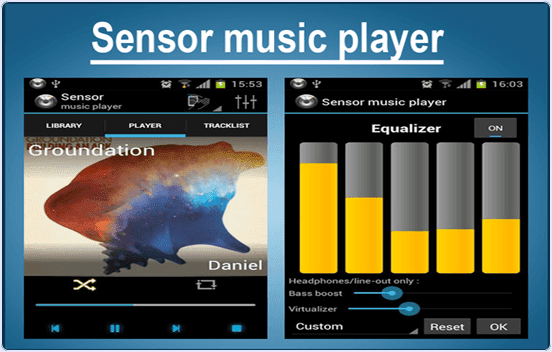
6. Sensor Music Player


Sensor Music player is another Android music player. It is freely available on google play store. The player is divided into three tabs. First is library tab to browse our music collection, second is player to control the music playing and add it to various sound effects, control. Third is track list to track the playlist of songs. It provide simple and easy to use interface. It provide smart search bar for music search and download music.

https://play.google.com/store/apps/details?id=com.zgui.musicshaker
android Sensor Music player


7. Real Music Player


Real Music Player is one of widely used Android player which is available on Google play store for free. It provide you features including Headset, blue-tooth, auto generate playlist, edit playlist, support for music search. We can also add customize skins to player. It also provide social media support for sharing music listening status.

 https://play.google.com/store/apps/details?id=media.easyg.musicplayer.ck
android Real Music Player

So these some best music player apps for android device. We have listed few paid and free music players. In you have any of the best and popular android music player then share it in the comments.

MoboMarket For PC Review With New Updated Features

Interface And Features Of MoboMarket:


Let’s talk about the interface of the application first. When a user downloads or installs something on his system he expects a good user interface too. So keeping that in mind, MoboMarket developers have made the user interface of this manage simple, yet full featured.

User interface is the only big difference between MoboRobo and MoboMarket- A first time user can road around it without any assistance. As you can see while using the app manager, MoboMarket allows you to connect your mobile device either via USB cable or by using Wi-Fi connection. This is one of the best features a smartphone manager can offer.

If you are in hurry and don't have a USB cable, you can use Wi-Fi connection to sync and manage mobile device with desktop or laptop system.


Features Of MoboMarket:


iOS manager: MoboMarket is featured with brand new iOS manager, which supports both jail break and non-jail break devices. All you need is to upgrade your iOS device to iOS 8.3 or higher to use it. With MoboMarket, you can manage your games, Apps, music, files and backups all in one place.You can download and install unlimited number of apps to your android or iOS mobile using MoboMarket resources tab.

Applications: As you can see in your screen, there are a good number of apps listed in the resources tab of this app. There is a device manager in MoboMarket from where you can get information about your connected device.
MoboMarket For PC Review apps
Easy To Understand: In the devices tab you can see operating system version, device storage, serial number and other hardware and software information. Device tab itself gives ability to check installed and system applications. Apps can be updated too.

Messaging: There is a text message controller in it which allows you to receive and send text messages right from your desktop or laptop system. If you need, you can read current text messages of the devices too.

Media: Just after device tab, there is another tab named Media in it which allows you to control media files of your phone and sync them with your desktop or laptop system. MoboMarket have an in-built media player, which allows you play music of your choice on desktop computer. You can sync, play, add and delete music files using MoboMarket media tab.
MoboMarket For PC Review devices
Resource: Next is the resources tab, which allows you to download and install new apps and games to your mobile devices without visiting any third party websites or apps. When you will visit the resources tab of MoboMarket, you will be welcomes with the home tab which will show you all featured as well as daily recommended apps. You can browse through their huge list of apps and games and install them on your mobile device for free.

Toolbox: Last, but not the least, there comes Toolbox tab which have all necessary features and options you need to manage you mobile device.
MoboMarket For PC installed apps
Better user experience: You can view your mobile in full screen and enjoy WhatsApp chatting in a big screen. Everything you will do on your mobile device will be visible on your desktop or laptop screen in real time. So it is fun and helpful. You can take your device and restore it back using toolbox tab of MoboMarket.


New Features: 


  • Along with new iOS manager, MoboMarket have improved android manager too.
  • They have strengthened android device connection and file management experience.
  • MoboMarket for PC version of android have green color skin which really looks good and it eye catching.
  • MoboMarket have also added an auto upgrade mechanism into it which automatically upgrades your android smartphone drivers when you connect it.
  • Bug fixed successfully, which will help in using application without any issue.
MoboMarket For PC device
 

Conclusion:


I hope this information about MoboMarket will help you in deciding which smartphone manager app you should use. MoboMarket is ultimately a great app one can have to manage and backup smartphones. This application is still in developing mode, still it offers some advanced features. There are many alternatives available of MoboMarket, but frankly speaking, there is not a single competitor of it. If you have used MoboMarket or currently using it, then do share your views with us.
http://download.moborobo.com/download/Client/En_net/MoboMarketPC_v5(official).exe

How To Use Whatsapp Without Mobile Number

Method To Use whatsapp Without Mobile Number.


Step 1. Firstly you have to download whatsapp messenger in your Android device and install and launch it.
Step 2. If you are old whatsapp user then you have to delete your whatsapp account and download and install whatsapp again.
Step 3. Next step is enter your name and verify your mobile number. But you do not enter your mobile number now.
Step 4. Then we have to verify your mobile number with another way. Download Text+ App in your mobile to verify your mobile number.
https://play.google.com/store/apps/details?id=com.gogii.textplus&hl=en
Step 5. After launching text + App you have to open the App and go to settings and select contacts.
android text+ app to use whatsapp without number
Step 6. You will get a number for your personal use in the app. Copy that number or write it .
Step 7. Now open your whatsapp messenger and paste the number that you get from the text + App.
android text+ phone number list to use whatsapp
Step 8. Click on continue button now you will get a verification code in Text+ app.
Step 9. Get this code and verify your account. Now your whatsapp account is ready without any number.
add new unknown number to whatsapp without number
I hope you like this tutorial about using whatsapp without number.